
Short answer: as of November 2, 2026, Tesla has not shipped native Apple CarPlay in any Model 3 or Model Y. If you want CarPlay for Tesla today, the working route is a USB adapter such as the Carlinkit T2C: it creates its own Wi-Fi network, and CarPlay runs inside the Tesla browser on your main touchscreen.
Below you’ll find where native CarPlay stands, how the adapter route works, step-by-step setup, and fixes for the connection problems owners hit most often.
| Question | Quick answer |
|---|---|
| Does Tesla have native CarPlay? | No — not announced or released by Tesla as of Nov 2, 2026 |
| Is it coming? | Reported in development since November 2025, no release date |
| How can I use CarPlay now? | A Tesla-specific adapter (e.g. Carlinkit T2C) + the Tesla browser |
| What do I need? | iPhone 6 or newer on iOS 10+, a USB/Type-C port, and Wi-Fi on the car |
| SIM card needed? | Not for the T2C 2.0 — it uses your iPhone’s hotspot |
| Price of the T2C 2.0 | $68.99 USD on carlinkitfactory.com |
Does Tesla Support CarPlay from the Factory?
No. No Tesla currently supports Apple CarPlay or Android Auto out of the box. Status as of November 2, 2026: Tesla has not published an official CarPlay announcement, and no software update has added it.
Here’s the timeline behind the headlines you may have seen:
- November 13, 2025: Bloomberg reported that Tesla was developing CarPlay support.
- February 1, 2026: Bloomberg’s Mark Gurman reported the project was still in progress, with no firm date.
- April 13, 2026: Tesla released its 2026 Spring Update. It did not include CarPlay.
- October 2026: Still no native CarPlay. Tesla itself has not confirmed a launch.
If native CarPlay for Tesla does arrive, expect it as an over-the-air software update rather than new hardware.
What Tesla offers instead
Teslas already include Apple Music and Apple Podcasts apps, and iPhone Bluetooth pairing handles calls and text messages. What’s missing is everything else CarPlay brings: Apple Maps or third-party navigation on the big screen, messaging apps, audiobook apps and Siri-driven control of your phone.
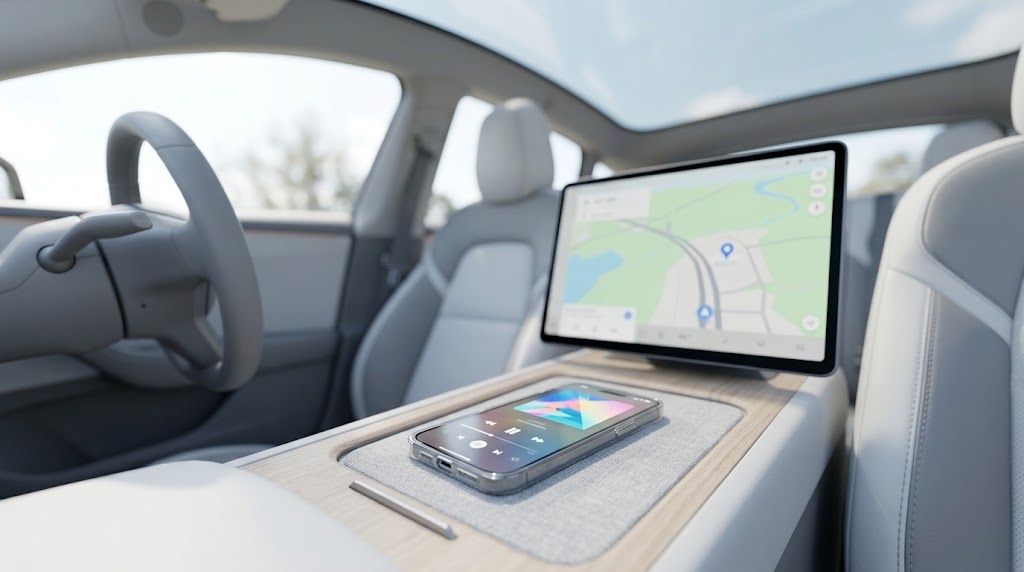
What the reported native version would look like
According to the reports, Tesla’s CarPlay would not take over the whole display:
- It would run in a window, while Tesla keeps part of the screen for its own controls.
- It would be standard wireless CarPlay, not CarPlay Ultra.
- It would not control seats or climate, and it would not tie into Autopilot or FSD.
- It may be limited to cars with the newer AMD computer (MCU), leaving older cars out.
None of this is confirmed by Tesla, so treat it as a preview, not a promise.
Native CarPlay (reported) vs. an adapter today
| Native CarPlay (reported, not released) | Adapter such as Carlinkit T2C | |
|---|---|---|
| Available now | No | Yes |
| Where it shows | A window in Tesla’s interface | Inside the Tesla browser on the main screen |
| Connection | Wireless | Wireless (adapter on USB, phone over Bluetooth + Wi-Fi) |
| Extra hardware | None | Small adapter on a USB/Type-C port |
| Which Teslas | Possibly AMD-computer cars only | Product page lists Model 3, Model Y, Model S and Model X |
How the Carlinkit T2C Works — and Its Limits
A Tesla CarPlay adapter has to solve one problem: Tesla doesn’t speak the CarPlay protocol. The T2C works around this with the one app every Tesla has — the web browser.
The connection chain
- The T2C plugs into a USB or Type-C port in the car with its data cable and takes power from it.
- It broadcasts its own Wi-Fi network named AutoKit-xxxx (dual-band 2.4 GHz + 5 GHz).
- Your iPhone pairs with the T2C over Bluetooth and starts wireless CarPlay with it, as it would with a CarPlay car.
- The Tesla joins the AutoKit Wi-Fi, and you open tespush.com in the Tesla browser. That address is redirected to the adapter’s local page (192.168.3.1:7681), which displays the CarPlay interface.
The T2C 2.0 no longer needs a SIM card. Internet access comes from your iPhone’s Personal Hotspot, and the adapter communicates with the phone and the car over the local network.
What you need
- Tesla: the product page lists all series — Model 3, Model Y, Model S and Model X. Check the compatibility list on the product page before ordering.
- Phone: iPhone 6 or newer running iOS 10 or above.
- Network: Personal Hotspot available on your iPhone plan.
Good to know before you buy
- CarPlay opens in the Tesla browser. The T2C keeps Tesla’s own screen system and adds its CarPlay interface on top, so nothing in the car is modified.
- Tesla’s internet runs through the T2C while connected, including routine system updates. Carlinkit’s own advice: for a Tesla software update, connect the car to a different Wi-Fi hotspot.
- Watching video: if your Tesla has Premium Connectivity, the product page suggests disconnecting from the T2C Wi-Fi when you stop to watch video or use entertainment apps, so the car uses its own 4G connection.
- Built for iPhone: the T2C 2.0 brings Apple CarPlay to your Tesla and works with iPhone 6 or newer on iOS 10 or above.
- Region restrictions: Carlinkit states the T2C cannot be used in Taiwan, Hong Kong, Australia and Israel. The US, UK and Canada are not on that list.
How to Install CarPlay in Your Tesla Model 3 / Model Y
Do the first-time setup parked, in Park, with the iPhone you’ll use every day.
Before you start: update the T2C to the latest firmware. Carlinkit’s troubleshooting begins with this step, and the T2C 2.0 can be updated using only an iPhone with an internet connection. The red LED blinks alternately while it updates — wait until it finishes rebooting.
- Turn on Personal Hotspot on your iPhone. The T2C 2.0 has no SIM, so this is its internet source.
- Plug the T2C into the car’s USB/Type-C port using the supplied data cable.
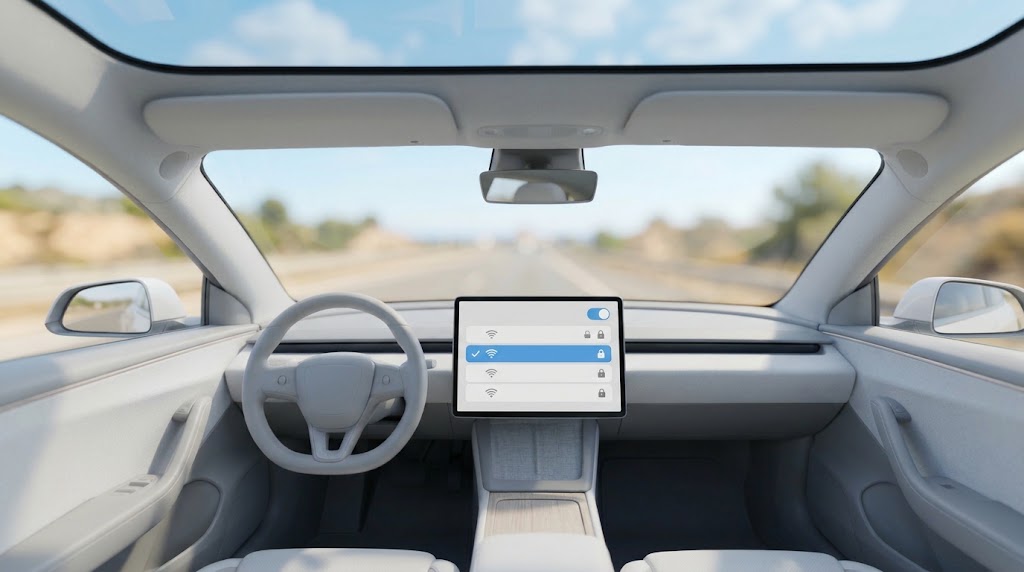
- Connect the Tesla to the AutoKit-xxxx Wi-Fi. Tap the Wi-Fi icon on the touchscreen, choose the AutoKit network and enter the default password 88888888.
- Tick “Stay connected while driving” in the Tesla Wi-Fi settings. Skip this and the link drops as soon as you leave Park.
- Open the Tesla browser and go to tespush.com. The connection screen appears.
- Pair your iPhone over Bluetooth with the AutoKit-xxxx name shown on the screen, then accept the CarPlay prompt on the phone.
- Once CarPlay is running, connect your iPhone to the Tesla’s own Bluetooth as well — this is the last step in Carlinkit’s setup order.
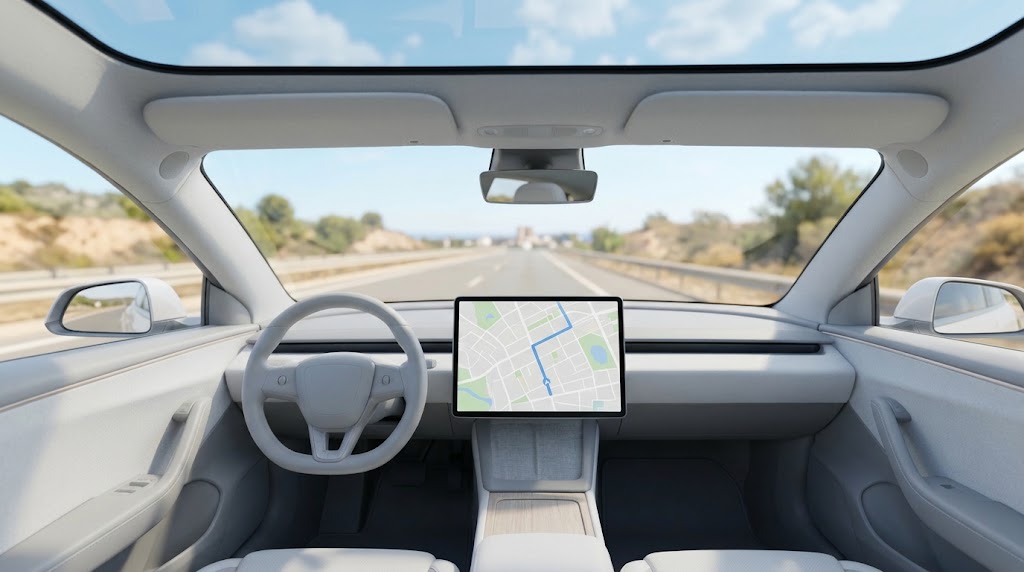
Small details that save time
- Watch LED 1. It shows the phone connection and flashes slowly once the iPhone and the T2C are linked. If it doesn’t, the issue is on the phone side, not the car.
- Change the default Wi-Fi password after setup. Carlinkit recommends it, and it keeps passengers’ phones off your adapter.
- Use Siri. Carlinkit notes you can call up Siri just as you do on your iPhone, so you can change destination or music by voice instead of tapping the screen.
Prefer to watch first? The T2C 2.0 product page also has a video tutorial.
Common Problems: Connection and Wi-Fi
Most CarPlay for Tesla problems with an adapter come down to Wi-Fi, so check that side before assuming the unit is faulty. These are the problems Carlinkit’s own FAQ covers, with the fixes it gives.
Tesla shows “Unable to obtain IP address”
This usually means the car and the adapter don’t agree on the Wi-Fi channel. The T2C’s default wireless channel is 36, a 5 GHz channel, and 5 GHz rules differ between countries. Carlinkit’s fixes:
- Update the T2C firmware to the latest version.
- Change the Wi-Fi channel: power up the T2C, wait about 40 seconds, then connect your iPhone to the AutoKit Wi-Fi (default password 88888888). Open 192.168.3.1 in the iPhone’s browser, go to the WIFI option, pick a different channel and tap Save.
- Check the DHCP settings.
Our guide to the Tesla “Unable to obtain IP address” error goes deeper.
CarPlay disconnects when you shift into Drive
Go back to the Tesla Wi-Fi menu and confirm “Stay connected while driving” is ticked for the AutoKit network. Without it, the Tesla leaves the network when you shift out of Park.
The Tesla software update won’t download
While connected to the T2C, all of the car’s network traffic goes through the adapter. For OTA updates, connect the Tesla to home Wi-Fi or another hotspot. We explain what does and doesn’t work when you use your Tesla as a hotspot in a separate guide.
Your iPhone keeps joining the AutoKit network
If your iPhone has joined the T2C hotspot before, it may keep reconnecting and use the adapter for data. To reset the pairing, open Settings > General > CarPlay on the iPhone, select the car or AutoKit, and tap Forget This Car. Then pair again from step 6.
Neither the car nor the phone can find the T2C’s Wi-Fi
Check that the T2C is powered (LED 3) and firmly seated in the port, then try another USB/Type-C port. If the network still doesn’t appear, update the T2C firmware from your iPhone (see “Before you start” above) and email service@carlinkitfactory.com with your order number.
FAQ
Does Tesla have Apple CarPlay in 2026?
No. As of November 2, 2026, no Tesla model has native Apple CarPlay, and Tesla has not officially announced it. The 2026 Spring Update did not include it. Today, Tesla owners get CarPlay through third-party adapters that display it in the Tesla browser.
Will Tesla add CarPlay with a software update?
Bloomberg reported in November 2025 that Tesla is developing a windowed, wireless version of CarPlay. Tesla has not confirmed it or given a date. If it ships, it would arrive over the air. Reports suggest it may be limited to cars with the newer AMD computer.
Does the Carlinkit T2C need a SIM card or data plan?
The T2C 2.0 does not need a SIM card. It gets internet from your iPhone’s Personal Hotspot, so the data used comes out of your phone plan. Carlinkit also advises using a different Wi-Fi network when the Tesla downloads a software update.
Does CarPlay for Tesla work on Model S and Model X?
The T2C 2.0 product page lists all Tesla series: Model 3, Model Y, Model S and Model X. Model years are not specified, so check the product page’s compatibility list for your car. Your iPhone needs to be an iPhone 6 or newer running iOS 10 or later.
What if the T2C doesn’t work in my Tesla?
The T2C is covered by Carlinkit’s 2-year warranty. You can return it within 30 days of delivery; change-of-mind returns carry a restocking fee. Email support first for an RMA — the return address is in the RMA email. Refunds are issued within 7 business days.
Ready to Add CarPlay to Your Tesla?
Waiting for Tesla could take a while, and nothing has been confirmed. If you want CarPlay for Tesla now, start by confirming you’re an iPhone user outside the restricted regions and can turn on Personal Hotspot. Then check the specs, compatibility list and current price of the Carlinkit T2C 2.0 Wireless CarPlay Adapter for Tesla ($68.99 USD).
See the Carlinkit T2C 2.0 for Tesla