
Quick answer
CarStream is not in the Google Play Store, so in 2026 you install it with the free AAAD app (Android Auto Apps Downloader) and then turn on Unknown sources in Android Auto’s developer settings. That gives you two ways to get YouTube on your car screen:
- Free, with some tinkering: sideload CarStream through AAAD on an Android phone. It does not work with iPhone, and an Android Auto update can break it again.
- Stable, no sideloading: plug a CarPlay AI box into the USB port your car already uses for CarPlay or Android Auto. YouTube and Netflix install from the Google Play Store on the box itself, with an iPhone or an Android phone.
Safety first: only watch video while parked (for example during a break or while your EV is charging), or leave it to your passengers. Never while driving.
Key takeaways
- Android Auto blocks video apps on the car screen, so there is no official YouTube app for Android Auto.
- CarStream is an unofficial browser app for Android Auto. You install it through AAAD, not the Play Store.
- CarStream needs an Android phone and Android Auto’s developer settings. It does not run on iPhone or CarPlay, and it can stop working after an update.
- An AI box turns your factory screen into its own Android system: YouTube, Netflix and more from the Google Play Store, with nothing to change on your phone.
YouTube on Android Auto: your 3 options compared
| Option | What you need | Pros | Cons |
|---|---|---|---|
| 1. CarStream (sideloaded) | Android phone, the AAAD app, Unknown sources on in Android Auto | Free | Sideloading and developer settings; no iPhone; may break after updates |
| 2. Screen mirroring apps | Android phone and an unofficial mirroring app, often also sideloaded | Shows any app on your phone | Lag and stutter, heavy battery use, your phone is tied up |
| 3. CarPlay AI box (recommended) | A car with factory wired CarPlay or wired Android Auto, plus an internet connection | Real YouTube and Netflix apps, stable, works with iPhone and Android | You have to buy the box |
How to install CarStream on Android Auto: step by step
CarStream is basically a web browser for Android Auto that lets you open the YouTube website on your car screen. Because it is not in the Google Play Store, you install it through AAAD. The screenshots below were taken on a Samsung Galaxy Z Flip 4; menu names can differ slightly on other phones. Always download the latest AAAD version from the developer’s release page rather than relying on a version number from an article.
Step 1: Allow installs from unknown apps
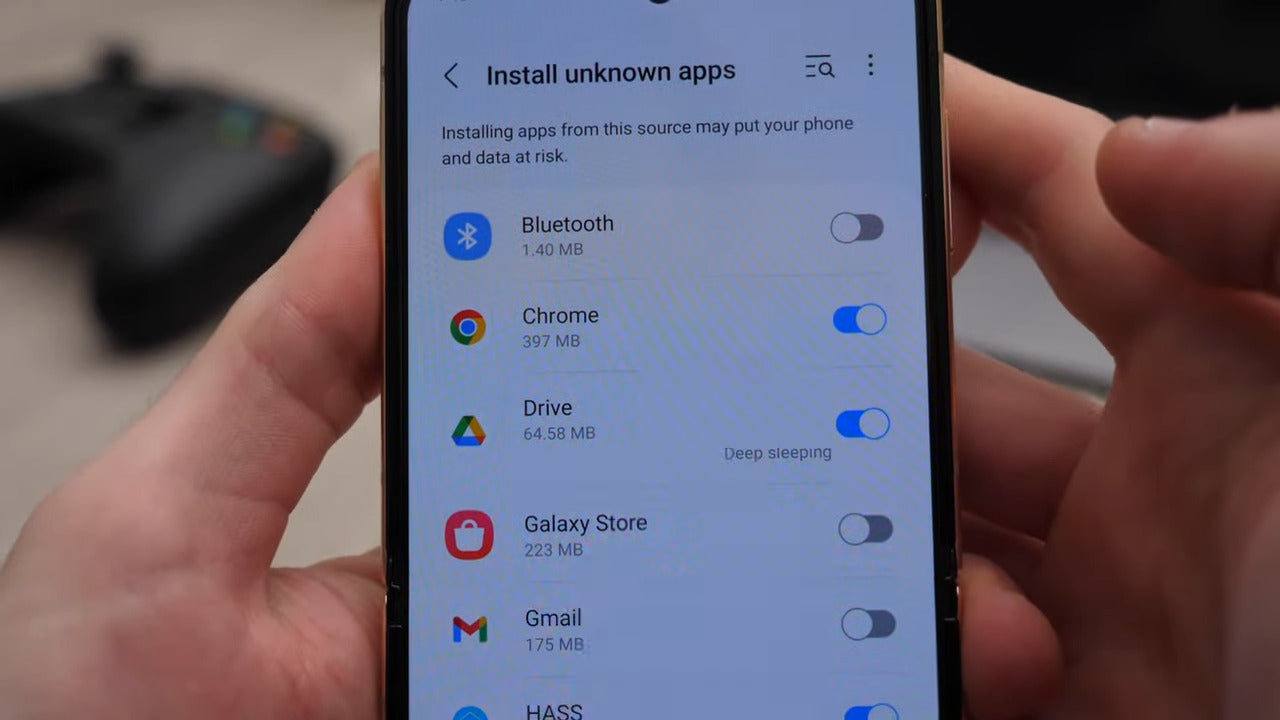
Open Settings on your phone and search for “Install unknown apps” (on some phones it is called “Install from unknown sources”). Allow Chrome to install apps, because you will download the AAAD file with Chrome in the next step.
Step 2: Download AAAD and install CarStream
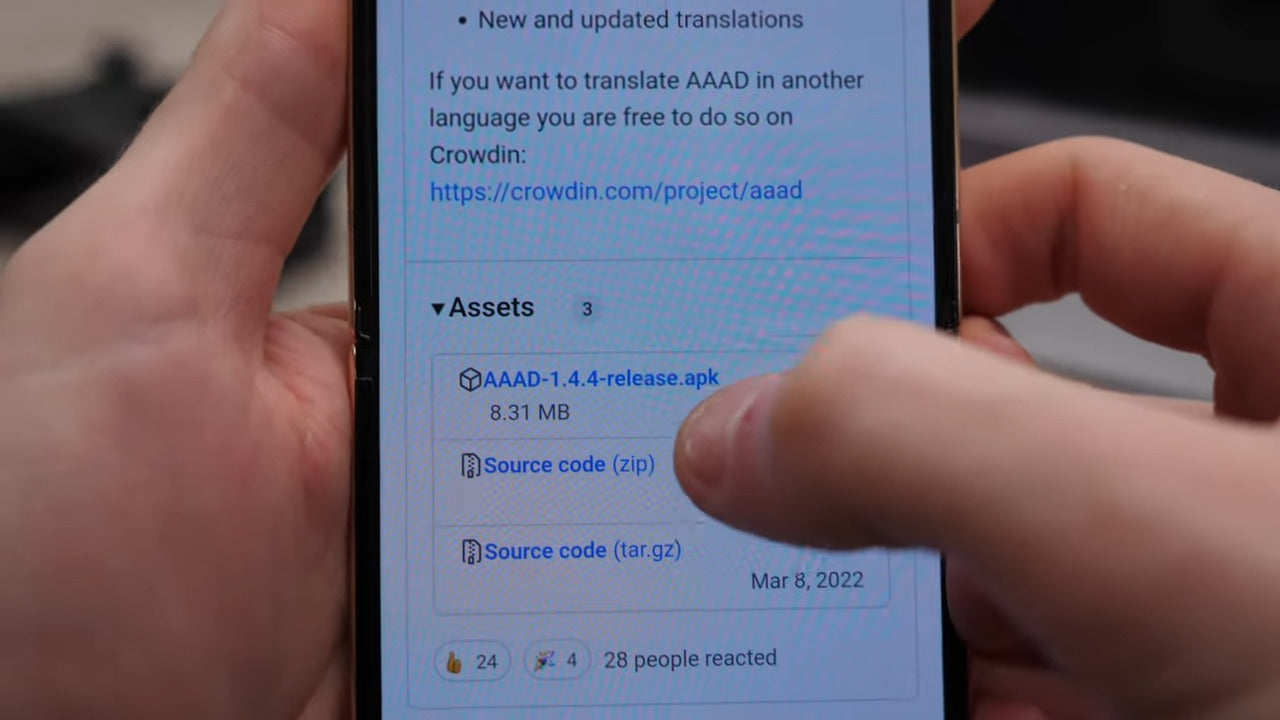
In Chrome, download AAAD from the developer’s release page: github.com/shmykelsa/AAAD/releases. When the download finishes, tap “Open” and confirm the install. Launch AAAD, choose CarStream from the list and tap “Install”.
Good to know
Here you are installing an APK from an independent developer outside the Google Play Store. If that feels risky, or you would rather not touch developer settings, a CarPlay AI box like the Max Ultra runs its own Android system with the Google Play Store, so YouTube and Netflix install the normal way.
Step 3: Turn on Unknown sources in Android Auto
For Android Auto to show the app, open the Android Auto settings on your phone, scroll to the bottom and tap “Version” about ten times until developer settings are unlocked. Then open “Developer settings” from the three-dot menu at the top right and turn on “Unknown sources”.
Step 4: Set up CarStream
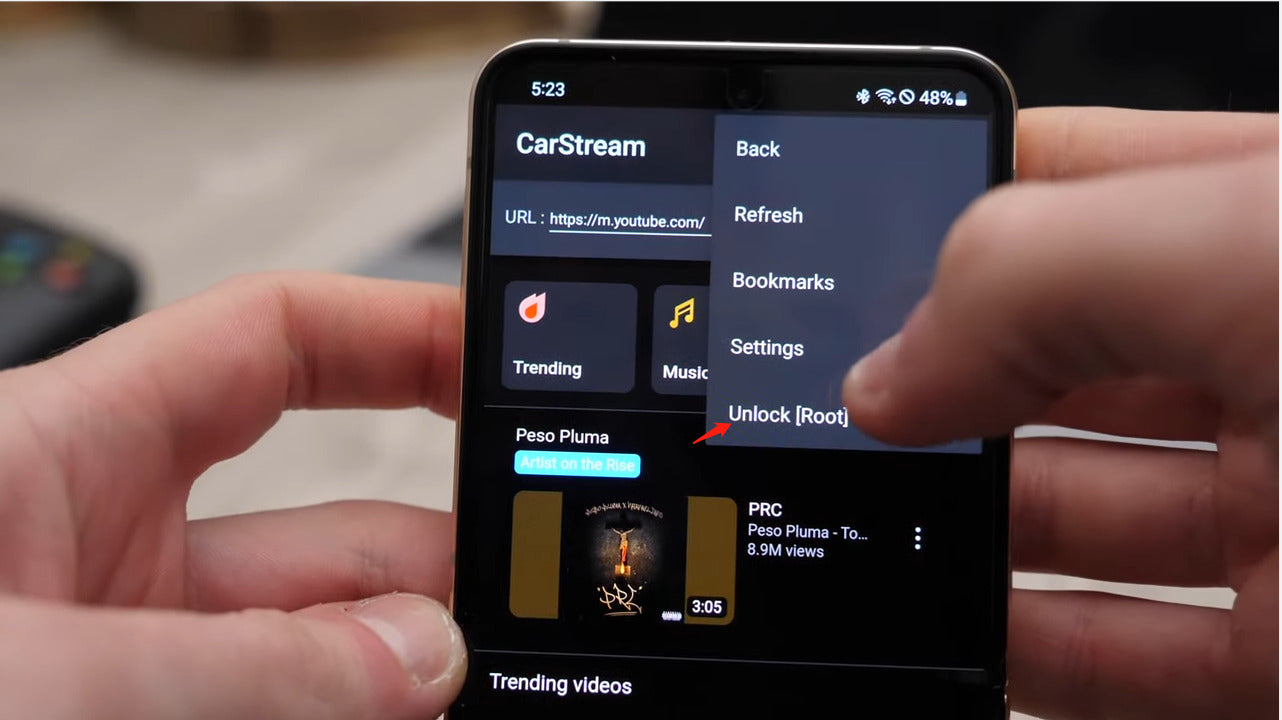
Open CarStream once on your phone and turn on desktop mode in the app’s settings. That lets you sign in on the YouTube website and use your subscriptions.
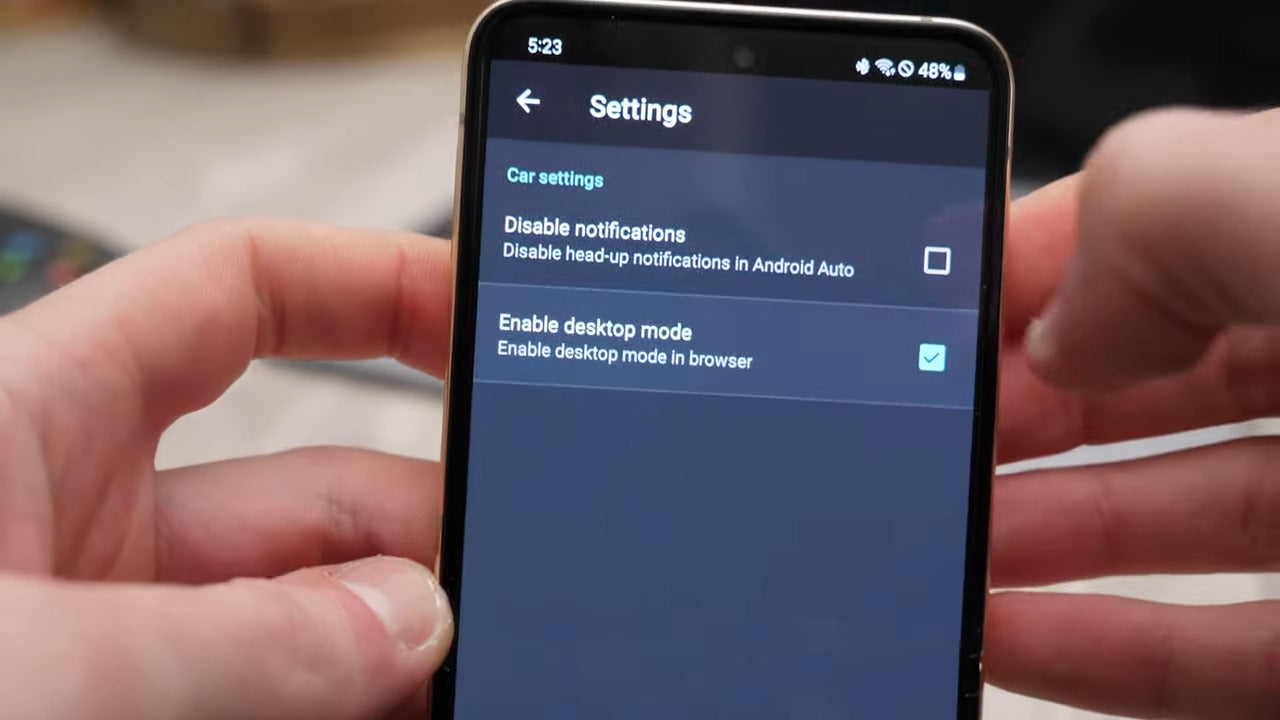
Step 5: Open YouTube with CarStream on your car screen
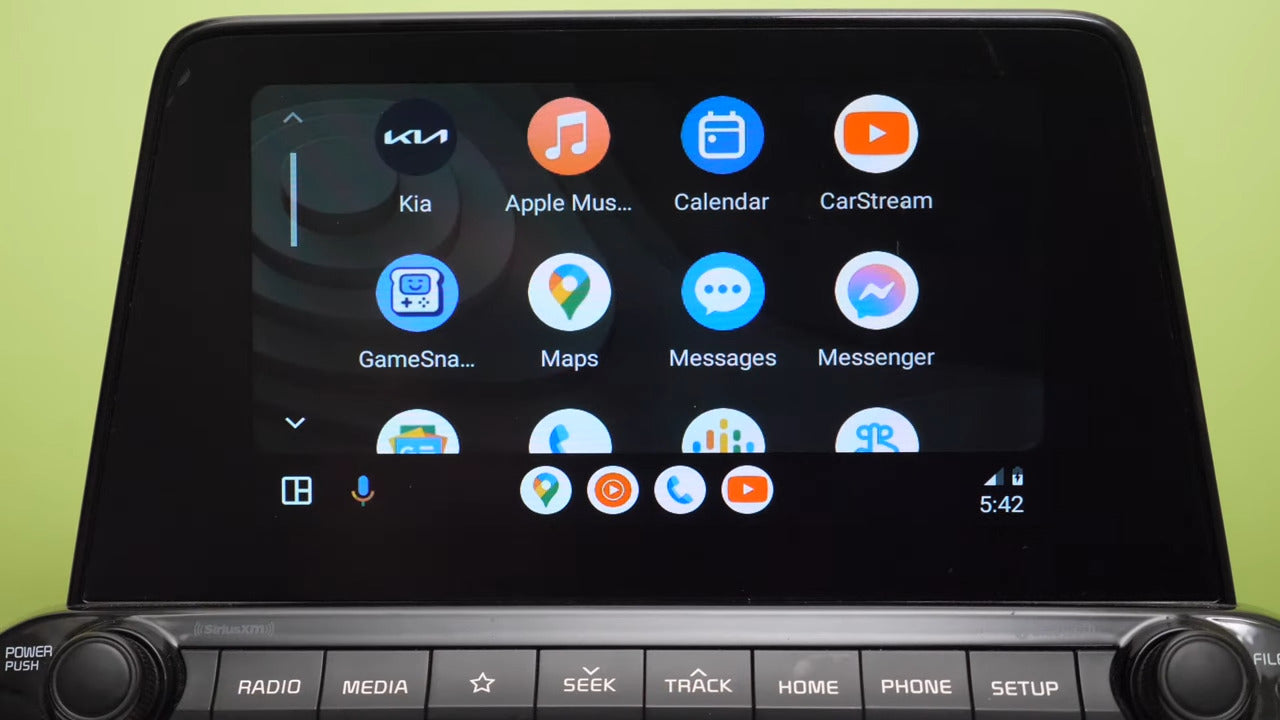
Connect your phone to the car and open CarStream from the Android Auto app launcher. Grant the permissions it asks for on first launch. You can then search for YouTube videos and watch them while parked. The bookmark icon in the top bar saves other websites, and the magnifier with the “G” starts a Google search.
CarStream not showing in Android Auto? Work through this list
- Check Unknown sources again. Android Auto updates sometimes switch it off. Open Developer settings and turn it back on.
- Check the launcher. In Android Auto settings, open “Customize launcher” and make sure CarStream is ticked.
- Reinstall the latest CarStream through AAAD, so you have a version that matches your current Android Auto.
- Clear Android Auto’s cache. Our guide shows how: clear the Android Auto app cache and storage.
- Restart your phone and the car’s infotainment, then reconnect.
- Still nothing after a big Android or Android Auto update? CarStream may simply not work until its developer releases a fix. If you don’t want to wait, an AI box does not depend on Android Auto at all.
Risks and limits of CarStream
- Sideloading: you install an app from outside the Play Store and enable developer settings. Only download AAAD from the developer’s GitHub page, never from random APK sites.
- Android only: CarStream does not exist for iPhone or Apple CarPlay.
- It can break: Google changes Android Auto regularly, and unofficial apps can disappear from the launcher after an update.
- Driving safety: watching video while driving is dangerous and illegal in many places. Use it only when parked or for passengers.
The no-sideload alternative: YouTube on a CarPlay AI box
A CarPlay AI box plugs into the USB port you use today for CarPlay or Android Auto. Your factory screen then runs a full Android system: you install YouTube, Netflix or Prime Video from the Google Play Store, just like on a tablet. The touchscreen, rotary knob and steering wheel buttons keep working, and your phone still connects wirelessly through CarPlay or Android Auto for maps, music and calls. It also works with an iPhone, which CarStream does not support. These are the three models we recommend:
Our pick
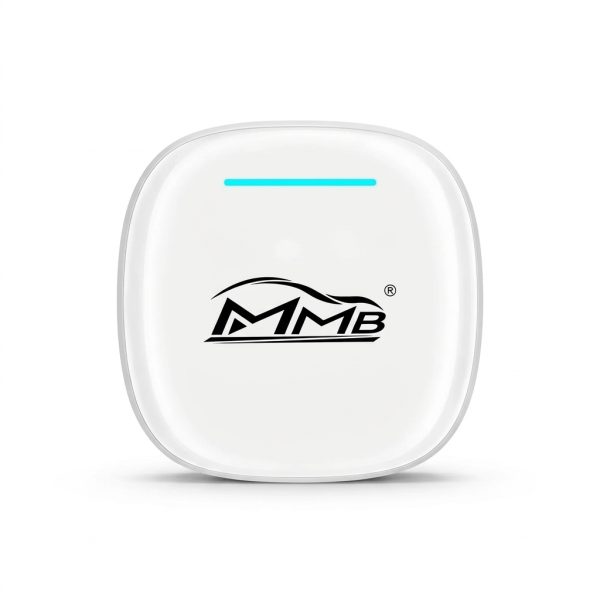
Max Ultra
The fastest for video: Android 15, 8-core Qualcomm QCM6350, 8 GB + 128 GB, 5G with a SIM card and split screen (maps on one side, YouTube on the other).
Best value
Tbox S2P
Everything you need for YouTube and Netflix: Android 14, 8-core Qualcomm SM6225, 8 GB + 128 GB, wireless CarPlay and Android Auto.
For the back seat
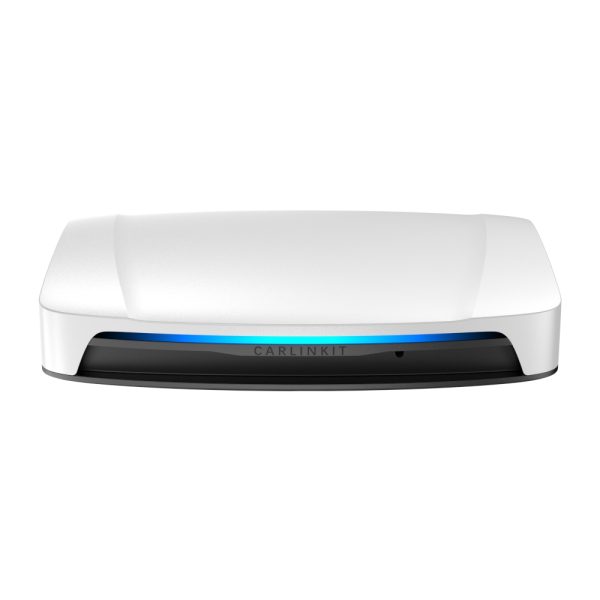
Tbox UHD
For rear passengers: HDMI output for a second screen, Android 13. Rated 4.8 out of 5 from 59 reviews.
Before you buy: will it work in your car?
- Your car needs factory wired CarPlay or wired Android Auto (you plug your phone in with a USB cable today).
- If your car only has wireless CarPlay, or no CarPlay / Android Auto at all, these boxes will not work.
- BMW drivers should choose the dedicated BMW box. Tesla is not supported.
- Not sure? Ask us to check your model on the product page before you order.
Compare every model in our CarPlay AI box category. For a hands-on look at streaming Netflix and YouTube on a box, read our Carlinkit Tbox review.
How to watch YouTube with an AI box
- Plug it in: unplug your phone cable and plug the box into the same USB port that starts CarPlay or Android Auto. After the first boot, the screen shows the box’s Android home screen.
- Get online: use your phone’s hotspot, a Wi-Fi network, or a SIM card (Max Ultra).
- Install YouTube: open the Google Play Store, sign in with your Google account and install YouTube (plus Netflix, Prime Video or Disney+ if you like).
- Watch and keep CarPlay / Android Auto: YouTube plays full screen through the car speakers. For maps and calls, open CarPlay or Android Auto on the box and your phone connects wirelessly.
Conclusion
If you have an Android phone and don’t mind tinkering, CarStream gets YouTube onto your Android Auto screen for free, but you have to live with sideloading, developer settings and the occasional break after an update. For everyday use, family trips and long charging stops, a CarPlay AI box is the simpler and more stable choice: YouTube and Netflix run as real apps on your factory screen, with an iPhone or an Android phone, and nothing to change on the phone. Whichever you pick, watch only when parked or let your passengers enjoy it, never while driving.
YouTube and Netflix in your car, without APKs or developer settings
Max Ultra: Android 15, 8 cores, 5G, split screen. For cars with factory wired CarPlay or wired Android Auto.
Frequently asked questions
How do I install CarStream on Android Auto?
Allow Chrome to install unknown apps, download AAAD from the developer’s GitHub release page, install CarStream from inside AAAD, then turn on Unknown sources in Android Auto’s developer settings. CarStream then appears in the Android Auto launcher.
Why is CarStream not showing in Android Auto?
Usually Unknown sources in Android Auto’s developer settings is off again, or CarStream is unticked in “Customize launcher”. Turn the option back on, reinstall the latest CarStream through AAAD and restart your phone and car screen. After a major Android Auto update it may not work until the developer releases a fix.
Do I need to root my phone to use CarStream?
No. You don’t need root or a jailbreak, but you do need to allow unknown app installs and unlock Android Auto’s developer settings. An AI box needs no changes to your phone at all.
Does CarStream work with iPhone or Apple CarPlay?
No. CarStream is only for Android phones running Android Auto. For iPhone and CarPlay, a CarPlay AI box is the way to watch YouTube, because it brings its own Android system.
Will an AI box work with my car?
Yes, if your car has factory wired CarPlay or wired Android Auto. Cars with only wireless CarPlay, or with no CarPlay / Android Auto, are not supported. BMW has a dedicated box; Tesla is not supported.
Can I watch YouTube while driving?
No. Watch only when parked or let your passengers watch. That is exactly why Android Auto blocks video apps, and every method in this guide is meant for breaks, charging stops and passengers.
Last updated: November 11, 2026