
Issue 1: T2C, Tespush.com Alert: Your Connection is Not Private
Users of T2C may encounter a browser prompt stating “Your connection is not private” when accessing Tespush.com. To resolve this issue, it is recommended to upgrade the product firmware to the latest version.
To upgrade the firmware, users can follow these simple steps:
- Power on the T2C device.
- Connect your mobile phone to the T2C’s Wi-Fi hotspot (AutoKit_xxx) using the default password (88888888).
- Open the browser on your mobile phone and enter the URL: 192.168.3.1.
- Navigate to the firmware upgrade section and follow the instructions to upgrade to the latest version.
After upgrading the firmware, the issue with the browser prompt should be resolved. If users require further assistance, they can contact the support team for help.
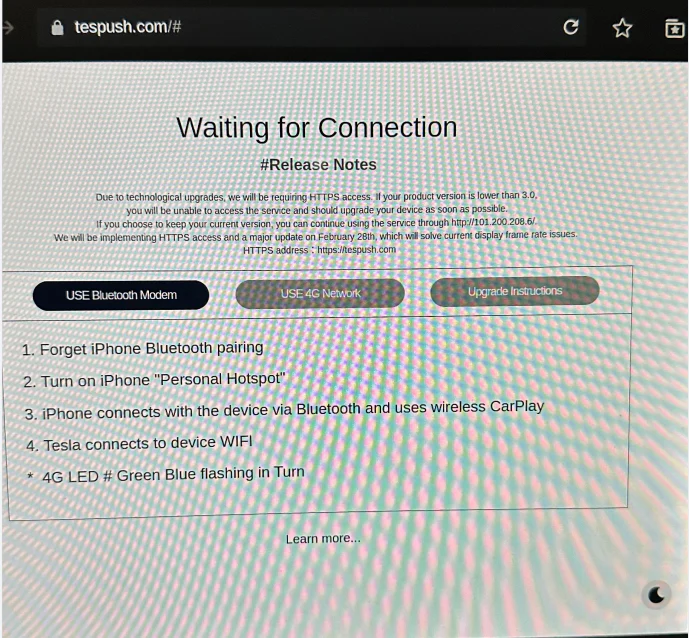
Issue 2: How to Resolve “Waiting for Connecting” Message on tespush.com?
Users may encounter a “Waiting for connecting” message when trying to access tespush.com. This issue can be caused by various factors such as poor internet connection, server issues, or browser cache. To resolve this issue, users can try the following steps:
- Check Internet Connection: Ensure that the device has a stable internet connection. Users can try to restart the router or switch to a different network.
- Clear Browser Cache: The browser cache can sometimes cause issues when accessing tespush.com. Users can clear the cache by going to the browser settings and selecting “Clear browsing data.”
- Update Browser: An outdated browser can also cause the “Waiting for connecting” message. Users can update their browser to the latest version to resolve this issue.
- Reset t2c Device: If the issue persists, users can try resetting their t2c device to its default settings. Instructions on how to reset the device can be found on the tespush.com website.
- Check Default Password: Users should ensure that they are using the correct default password when accessing tespush.com. The default password can be found on the tespush.com website.
- Use Correct URL: Users should ensure that they are using the correct URL when accessing tespush.com. The URL can be found on the tespush.com website.
By following these instructions, users can resolve the “Waiting for connecting” message when accessing tespush.com.
Frequently Asked Questions
How to Log into Tespush Account?
To log in to your Tespush account, you need to visit the official website and enter your login credentials. If you have forgotten your password, you can reset it by following the password reset instructions.
What to Do If Tespush is Not Functioning Correctly?
If you are facing issues with Tespush, the first step is to check your internet connection. If the issue persists, you can try restarting the application or device. If the problem still persists, you can contact Tespush customer support for further assistance.
Steps to Update Tespush Software
To update Tespush software, you need to visit the official website and download the latest version of the software. Once you have downloaded the software, you can follow the installation instructions to complete the update process.
Guide to Using Tespush
To use Tespush, you need to first log in to your account and connect it to your Tesla vehicle. Once connected, you can use the application to remotely control various features of your vehicle, such as locking and unlocking doors, adjusting the climate control, and checking the battery level.
Where to Find Reviews and Feedback on Tespush?
You can find reviews and feedback on Tespush on various online forums and review websites. Some popular options include Reddit, Tesla Motors Club, and Trustpilot.
Is Tespush Compatible with Tesla Vehicles?
Yes, Tespush is specifically designed to work with Tesla vehicles and is compatible with all models. However, it is important to note that some features may not be available on older models or vehicles with outdated software versions.