Overview
This article will discuss three common issues that users may experience with their car’s audio system and provide solutions to resolve them. The issues include an echo during calls when using the T-Box, a delay in audio sync when playing videos through other apps, and a delay when switching songs with wireless Android Auto. Additionally, this article will provide related articles to help users enhance their driving experience.
Issue 1: When using the T-Box, the other party always hears an echo during calls.
Users may experience an echo during calls when using the T-Box. To resolve this issue, users can follow these steps:
- Connect the car unit to the T-Box.
- After successfully connecting, open the “Autokit” app and navigate to Settings.
Featured products
-
Carlinkit Tbox 4.0 Ultra Android 15.0 System
Price range: $265.99 through $305.99 -
Carlinkit Tbox UHD Android 13 CarPlay AI Box with HD Output
Original price was: $305.99.$235.99Current price is: $235.99. -
-商标.1-300x300.jpg)
Carlinkit Tbox Ultra 2 — Android 15 × Qualcomm 6350 4GSIM 8+128G Redesign a seamless in-car experience
$265.99 -
Multimedia Android IOS Box For BMW(BMW 2018-2025 with Factory Carplay)ID6、 ID7、ID8、ID8.5、OS9 Exclusive BMW Android auto !
Original price was: $305.99.$245.99Current price is: $245.99.



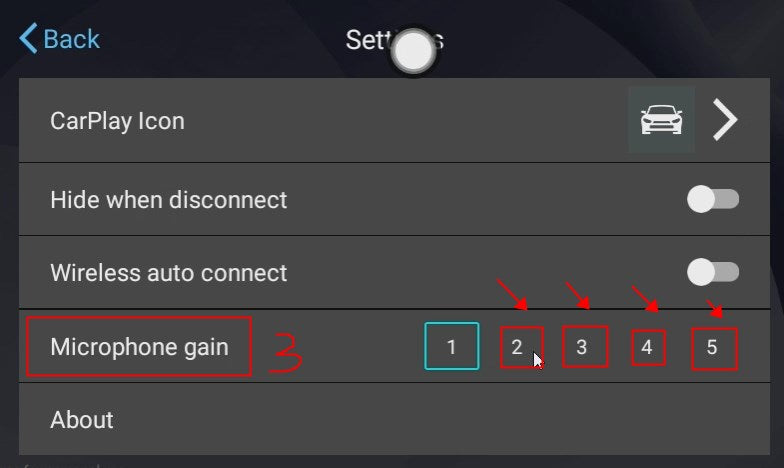
- Turn up the value of Microphone gain.
Video tutorials are also available to help users troubleshoot this issue.
Issue 2: What should I do when playing videos through other apps, the audio is not synced? There’s a 2 to 3 seconds delay.
Users may experience a delay in audio sync when playing videos through other apps. To resolve this issue, users can try the following methods:
- Upgrade the T-Box to the 0301 version. A tutorial on how to upgrade the T-box firmware is available.
- Go to Settings and click on Autokit-TBox Settings.

- Find Car Settings and navigate to Video Definition. Change the number to 6 and return to the home page to see if the delay problem was solved.

- If the issue persists, try modifying the Video Definition to other numbers.

- If the issue still persists after trying the above methods, users can upload the log and send the file to the support team. A tutorial on how to upload the log is available.
Issue 3: There is a delay when switching songs with wireless Android Auto.
Users may experience a delay when switching songs with wireless Android Auto. This is because wireless transmission can cause media delays. The original car’s wireless Android Auto may also experience this issue.
Related Articles
This article also provides related articles to help users enhance their driving experience. These articles include information on wireless Apple CarPlay, streaming apps such as TikTok and Netflix, and wired vs. wireless CarPlay/Android Auto. The related articles provide a breakdown of the pros and cons of each option to help users make an informed decision.
Frequently Asked Questions
How to Reduce Audio Latency Issues with Android Auto?
Audio latency is a common issue faced by Android Auto users, which can cause a delay in sound when playing music or using navigation. To reduce audio latency issues with Android Auto, users can try the following steps:
- Use a high-quality USB cable to connect the phone to the car’s head unit.
- Close all other apps running in the background on the phone before using Android Auto.
- Lower the audio quality of the music streaming app being used in Android Auto.
- Disable any audio enhancements or effects on the phone or in the car’s head unit settings.
What Steps Can I Take to Fix Bluetooth Audio Lag in My Car?
Bluetooth audio lag is another common issue faced by Android Auto users, which can cause a delay in sound when playing music or using navigation. To fix Bluetooth audio lag in a car, users can try the following steps:
- Turn off and on Bluetooth on both the phone and the car’s head unit.
- Clear the Bluetooth cache and data on the phone.
- Remove the phone from the car’s Bluetooth settings and pair it again.
- Update the phone and car’s head unit to the latest software version.
Why Is There a Delay in Sound When Using Android Auto?
There can be several reasons for a delay in sound when using Android Auto, including poor internet connectivity, outdated software, or hardware issues. Users can try the above-mentioned steps to reduce audio latency issues and fix Bluetooth audio lag to improve the sound quality.
Are There Any Updates That Address Audio Delay Problems in Android Auto?
Google regularly releases updates to improve the performance and fix bugs in Android Auto. Users should ensure that they have the latest version of Android Auto installed on their phone and car’s head unit to address any audio delay problems.
How Can I Troubleshoot Android Auto Connectivity Issues That Cause Audio Lag?
If the above-mentioned steps do not fix the audio delay problem, users can try troubleshooting Android Auto connectivity issues that cause audio lag. Some of the steps that can be taken are:
- Check the USB cable and port for any damage or debris.
- Restart the phone and car’s head unit.
- Reset the car’s head unit to factory settings.
- Contact the car’s manufacturer or Android Auto support for further assistance.
What Are Common Fixes for Audio Delay When Using Third-Party Devices like AAWireless with Android Auto?
Third-party devices like AAWireless can also cause audio delay issues when used with Android Auto. Users can try the following steps to fix audio delay when using third-party devices:
- Update the AAWireless firmware to the latest version.
- Check the internet connectivity and speed.
- Use a high-quality USB cable to connect the AAWireless device to the car’s head unit.
- Contact the AAWireless manufacturer or Android Auto support for further assistance.