Q1: Music Interruptions or Delays in Song Switching with Carlinkit 5.0 (2air)
If you’re experiencing music interruptions or delays in song switching with Carlinkit 5.0 (2air), there are a few troubleshooting steps you can try. First, search for the box’s WiFi (Autokit_**) on your mobile phone and enter the password 12345678.

Once successfully connected, open your browser and visit 192.168.50.2 to access the background settings.
Featured products
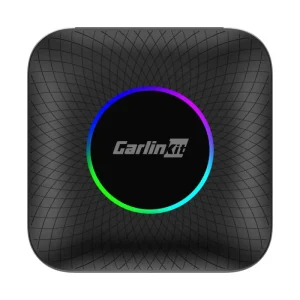
CarlinKit CarPlay Ai TV Box LED Plus Android13 Qualcomm 6225 8-Core Wireless CarPlay Android Auto Netflix YouTube
Price range: $195.99 through $205.99Carlinkit Tbox 4.0 Ultra Android 15.0 System
Price range: $265.99 through $305.99Carlinkit Tbox Plus CPC200-Tbox Plus Android 13.0 Internet AI Box-Wireless Apple Carplay&Android Auto(8+128G)
Price range: $181.99 through $199.99Carlinkit Tbox UHD Android 13 CarPlay AI Box with HD Output
Original price was: $305.99.$235.99Current price is: $235.99.


Toggle media sound quality, and change media delay to 1500. If the problem persists, try changing the media delay to 2000. These steps may help resolve music interruption and delay issues.

Q2: Addressing unclear, noisy, or echoing calls with Carlinkit 5.0 (2air).
To improve call clarity and reduce noise or echoes during calls with Carlinkit 5.0 (2air), follow these steps:
- Connect your mobile phone to the device’s WiFi, which is labeled as Autokit_*** and use the password 12345678 for access.
- Open the default browser on your phone and enter 192.168.50.2 to access the device settings.
- Within the settings, locate the ‘CallQuality’ option and adjust it to ‘HD’ for clearer calls.

By following these steps, users can experience improved call quality and reduce noise or echoes during calls with Carlinkit 5.0 (2air).
Q3: Addressing Sound Stuttering and Quality Issues with Carlinkit 5.0 (2air)
If you experience sound issues with your Carlinkit 5.0 (2air) dongle, such as stuttering, intermittent playback, or poor audio quality, there are a few steps you can take to troubleshoot the issue.
First, connect your mobile device to the device’s WiFi, usually named Autokit_***, using the password 12345678. Then, launch your phone’s built-in browser and input 192.168.50.2 to access the device settings. From there, navigate to the media sound quality settings and adjust the media delay to 1500. If the problem persists, consider changing this value to 2000 for potential improvement.

It’s important to note that if the issue is related to Bluetooth connectivity, adjusting the media sound quality settings may not resolve the issue. In such cases, it’s recommended to check the Bluetooth connection and make sure it’s stable. If the problem persists, restoring factory settings or contacting customer support may be necessary.
Frequently Asked Questions
How to Fix Audio Delays When Streaming Music Through Carlinkit Device?
If you are experiencing audio delays or interruptions when streaming music through your Carlinkit 5.0 2air device, there are a few steps you can take to resolve the issue. First, try searching for the device’s WiFi network (Autokit_**) on your mobile phone and enter the password 12345678. Once connected, open your browser and visit 192.168.50.2 to access the background settings. From there, you can adjust the media delay settings to reduce audio delays or interruptions.
What are the Steps to Reset the Carlinkit 5.0 to Address Connectivity Issues?
If you are experiencing connectivity issues with your Carlinkit 5.0 2air, you may need to reset the device to its factory settings. To do this, navigate to the settings menu on your device and select “Restore Factory Settings.” You can also try ignoring the car from your iPhone’s CarPlay settings by going to Settings > General > CarPlay and selecting your car from the list, then tapping “Ignore this car.”
Is There a Way to Update the Firmware on the Carlinkit 5.0 to Improve Performance?
Yes, there is a way to update the firmware on the Carlinkit 5.0 to improve its performance. To do this, visit the Carlinkit website and download the latest firmware update for your device. Once downloaded, connect your device to your computer and follow the instructions to install the update.
How Does the Tbox Plus Audio Delay Compare to the Carlinkit 5.0 2air?
The Tbox Plus and Carlinkit 5.0 2air are both wireless CarPlay adapters that allow you to stream music from your mobile device to your car’s infotainment system. While both devices may experience audio delays or interruptions, the Tbox Plus is known for having a shorter audio delay than the Carlinkit 5.0 2air.
What Settings Can Be Adjusted to Reduce Music Interruption on the Carlinkit 5.0?
To reduce music interruption on the Carlinkit 5.0 2air, you can adjust the media delay settings in the device’s background settings. You can also try connecting to the device’s WiFi network (Autokit_**) and entering the password 12345678, then accessing the background settings to adjust the audio delay settings.
How Can I Troubleshoot Intermittent Connection Losses with My Carlinkit 5.0?
If you are experiencing intermittent connection losses with your Carlinkit 5.0 2air, there are a few steps you can take to troubleshoot the issue. First, try resetting the device to its factory settings by navigating to the settings menu and selecting “Restore Factory Settings.” You can also try ignoring the car from your iPhone’s CarPlay settings by going to Settings > General > CarPlay and selecting your car from the list, then tapping “Ignore this car.” Finally, you can try updating the device’s firmware to improve its performance.